

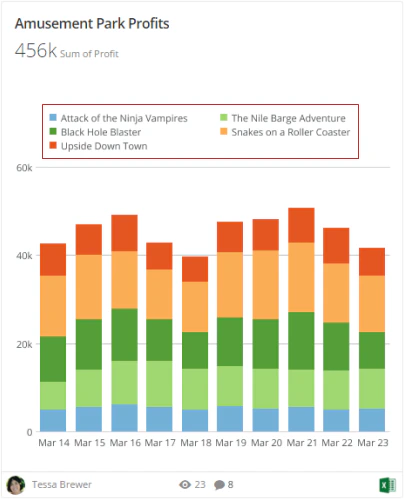
For some chart types with legends, you can hide or show le gends or change the legend position. For many of these chart types, you have the additional ability to specify different legend positions for the chart as it appears in portrait and landscape views for the card.Documentation Index
Fetch the complete documentation index at: https://domoinc-openapi-sync-documents.mintlify.app/llms.txt
Use this file to discover all available pages before exploring further.
Note: As of our October 2016 release, the Large View Legend Position and Details View Legend Position are deprecated and have been replaced with the Portrait View Legend Position and Landscape View Legend Position options. Prior to this release, certain chart types contained different properties for formatting the legends. With the October 2016 release, all charts with legends now have the same properties for formatting legends.
Note: Legends do not appear in Bar and Line charts without series data.

- Open the Analyzer for the chart you want to edit.
- In Chart Properties, click General.
- Select the desired option from the Portrait View Legend Position menu. By default, legends appear at the bottom of a chart in portrait view.
- Select the desired option from the Landscape View Legend Position menu. By default, legends appear to the right of a chart in landscape view. If you select Auto, the legend appears to the right of the chart if it contains 10 or fewer items. Otherwise it appears at the bottom of the chart.