

When you execute (run) a DataSet, you are essentially doing a refresh of the data in that DataSet. For most connectors, you should not need to do this manually, as you schedule automatic updates as part of the Data Center. To execute DataSets you do not own, you must have an “Admin” default security role or a custom role with the “Manage DataSets” privilege enabled. For more information about default security roles, see Managing Roles. You can execute DataSets one at a time or in bulk. To take bulk actions on DataSets, you must have an “Admin” default security role or a custom role with the “Manage DataSets” privilege enabled. To manually execute a single DataSet,Documentation Index
Fetch the complete documentation index at: https://domoinc-openapi-sync-documents.mintlify.app/llms.txt
Use this file to discover all available pages before exploring further.
- Click Data in the toolbar at the top of the screen. The Data Center opens, with the Data Warehouse tab opened by default.
- Click the icon on the left side of the screen to open the DataSets tab.
- Locate the DataSet you want to execute. For more information about searching and filtering DataSets in the Data Center, see Data Center Layout.
- Mouse over the row for the DataSet and click the icon.
- Select Run.
- Click Data in the toolbar at the top of the screen. The Data Center opens, with the Data Warehouse tab opened by default.
- Click the icon on the left side of the screen to open the DataSets tab.
- Locate one of the DataSets you want to execute. For more information about searching and filtering DataSets in the Data Center, see Data Center Layout.
-
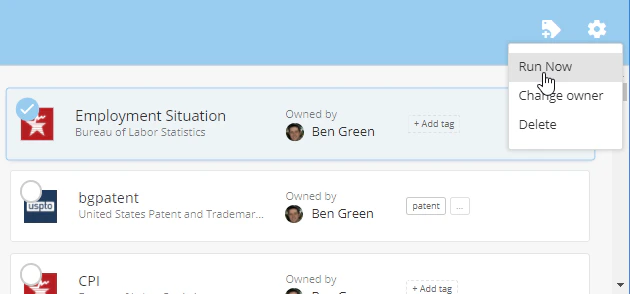
Mouse over the row for the DataSet and click the circled checkmark that pops up over the connector icon.

- In the blue bar that appears at the top of the screen, click the icon.
-
Select Run Now.
- In the Details view for the DataSet, select Stop Import from the gear menu.